If you study cybersecurity with random notes, you will waste time later trying to find one command, one screenshot, or one lab step. The fix is simple: use one main notes app, one fast inbox, and one review tool. In the article, I’d narrow the list to Root School, OneNote, Notion, Obsidian, Evernote, Google Keep, Anki, XMind, and draw.io because each one does a different job well.
Here’s the short version:
- Obsidian is the best fit if I want local Markdown files, offline use, and linked notes.
- OneNote works best for screenshots, handwriting, and loose visual layouts.
- Notion fits people who like databases, checklists, and one study workspace.
- Anki is for memorizing ports, commands, acronyms, and steps.
- Google Keep is for fast note dump and reminders.
- Evernote is mostly for clipping, OCR search, and storing reference material.
- XMind helps map frameworks, workflows, and exam domains.
- draw.io is for network diagrams, attack trees, and data flow diagrams.
- Root School gives beginners a guided study setup instead of a blank page.
A few points matter more than anything else:
- Security first: don’t store passwords, tokens, or raw lab secrets in plain text.
- Search matters: cybersecurity notes pile up fast, so tags, backlinks, and full-text search save time.
- Formatting matters: code blocks, screenshots, and diagrams should live next to the note.
- Offline access matters: labs and study sessions do not always happen with stable internet.
- Backups matter: a hybrid setup works best for many people - cloud for theory notes, encrypted local storage for lab material.
One data point from the article stands out: 67% of first-time certification passers used a dedicated note-taking system, compared with 41% of those who failed. That does not mean the app passes the exam for you. It means a clean system makes study time less messy.
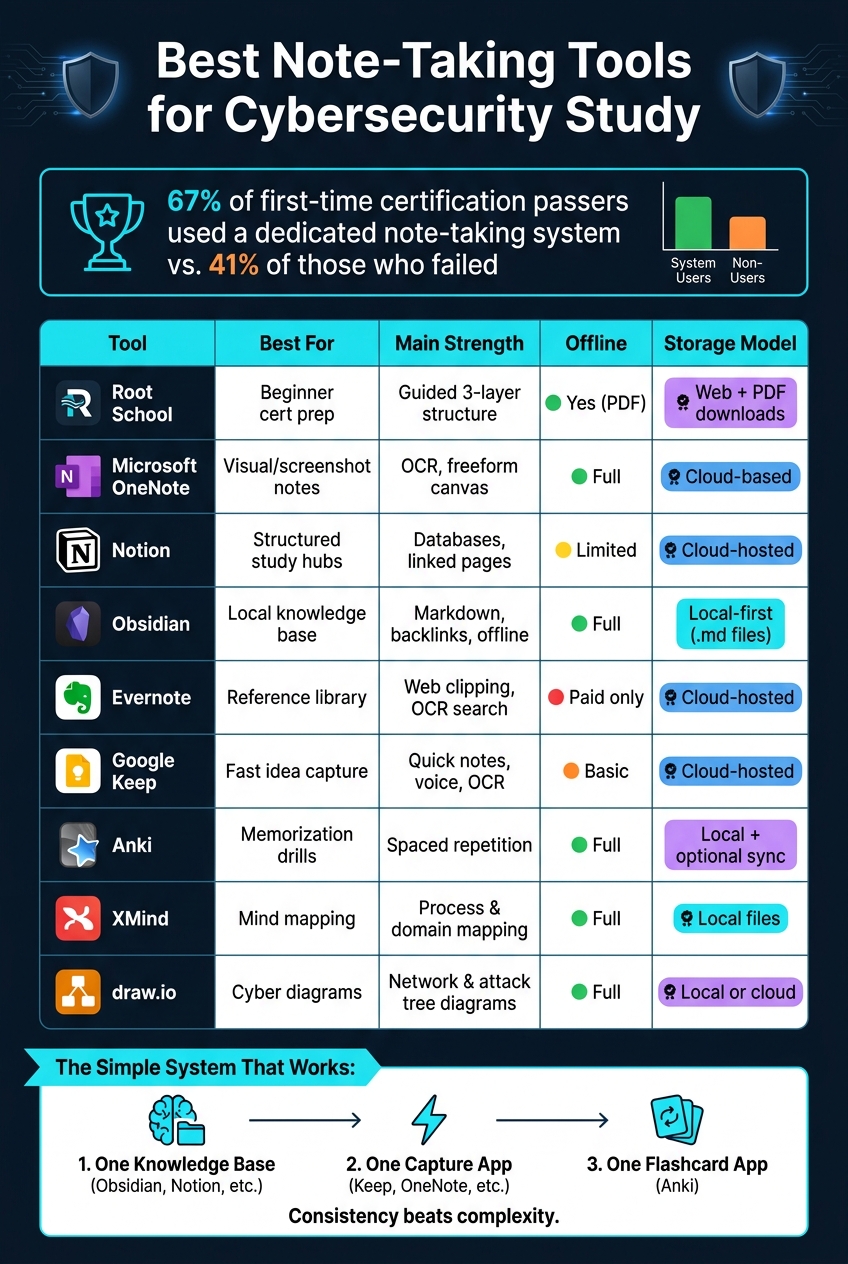
Best Note-Taking Tools for Cybersecurity Study: Side-by-Side Comparison
How to Take Notes for Cybersecurity Certifications | OSCP, CPTS, COMPTIA, CISSP
sbb-itb-8a31326
Quick Comparison
| Tool | Best for | Main strength | Main caution |
|---|---|---|---|
| Root School | Beginner cert prep | Guided structure | Not a full notes app |
| OneNote | Visual notes | Screenshots, drawing, OCR | Weak code formatting |
| Notion | Structured study hubs | Databases, linked pages | Limited offline use |
| Obsidian | Local knowledge base | Markdown, links, offline use | Sync may need setup |
| Evernote | Reference library | Web clipping, OCR | Free plan is very limited |
| Google Keep | Fast inbox | Quick notes, voice, image text | Not for deep technical notes |
| Anki | Memorization | Spaced repetition | Not a full notebook |
| XMind | Mind maps | Process and domain mapping | Not built for long notes |
| draw.io | Cyber diagrams | Network and threat-model diagrams | Not a note manager |
My takeaway: keep the setup simple. Use one place to store notes, one place to dump ideas fast, and one place to drill recall. That gives you a study system you can stick with instead of one you spend all day tweaking.
How To Choose a Digital Note-Taking Tool For Cybersecurity Exams
Not every note-taking app is built for the kind of material cybersecurity exams throw at you. The fastest way to compare tools is to start with security. Then look at organization, formatting, sync, and how the app handles lab data.
Security Features To Look For In Study Notes Apps
End-to-end encryption (E2EE) means your notes are encrypted on your device before they sync. That matters when you're storing study material that may include lab details or other sensitive info. Apps that store notes locally by default also give you more control over your data.
Before you put study notes into any cloud-based tool, read the privacy policy and data-retention terms. It’s not the most fun part of setup, but it can save you from a bad surprise later.
Once your notes are safe, the next job is making sure you can actually find them.
Organization Features For Technical Content
Cybersecurity notes get messy fast. One day it’s acronyms, the next day it’s privilege escalation steps, packet details, and command syntax all stacked together. That’s why tags, backlinks, and strong full-text search matter.
Tags like #priv-esc or #network-protocols help you pull related notes in seconds. Backlinks make it easier to connect one topic to another. And search has to do more than scan titles. You need to find a single command string buried inside hundreds of notes, not hunt around like you’re looking for a needle in a haystack.
Support For Commands, Code Blocks, And Diagrams
Cybersecurity exam prep usually includes commands, terminal output, and network sketches. Your note-taking tool should handle all of that without a fight. Native code block support is a must.
Markdown is a good fit here because it supports inline code, fenced code blocks, and tables without locking your notes into a proprietary format. That gives you more freedom if you ever switch tools later. Screenshot support and diagram embedding matter too. Dropping a lab screenshot or network diagram right into a note keeps the context in one place, which makes review much easier.
After formatting, check whether the tool still works well across your devices and without internet access.
Sync, Offline Access, And Device Support
Most people don’t study on just one device. You might review on a laptop at home, check flash notes on your phone during a commute, or use a tablet on the couch. Sync keeps everything lined up across those devices.
Tools like Notion and OneNote do this through the cloud automatically. Apps like Obsidian, which store notes locally by default, may need extra setup for sync. That can take more work, but it also gives you more say over where your data lives.
Offline access is a must if you study in lab settings or anywhere internet access is shaky. Local-first tools like Obsidian work fully offline by design. Notion’s free tier has limited offline functionality, so test that before you depend on it.
Sync is useful, but it should never shove sensitive lab details into plain text.
Safe Handling Of Lab Data In Your Notes
Lab sessions create a lot of raw detail fast: IP addresses, usernames, tokens, and screenshots full of output. That’s helpful for learning, but it also means your notes can end up holding more than they should.
Redact IPs, usernames, tokens, and credentials. Use clearly fictional placeholders like 192.168.x.x or [REDACTED] instead. The goal is simple: keep the learning value without storing data that could cause trouble later.
A simple system you use every time beats a perfect system you never fill.
1. Root School
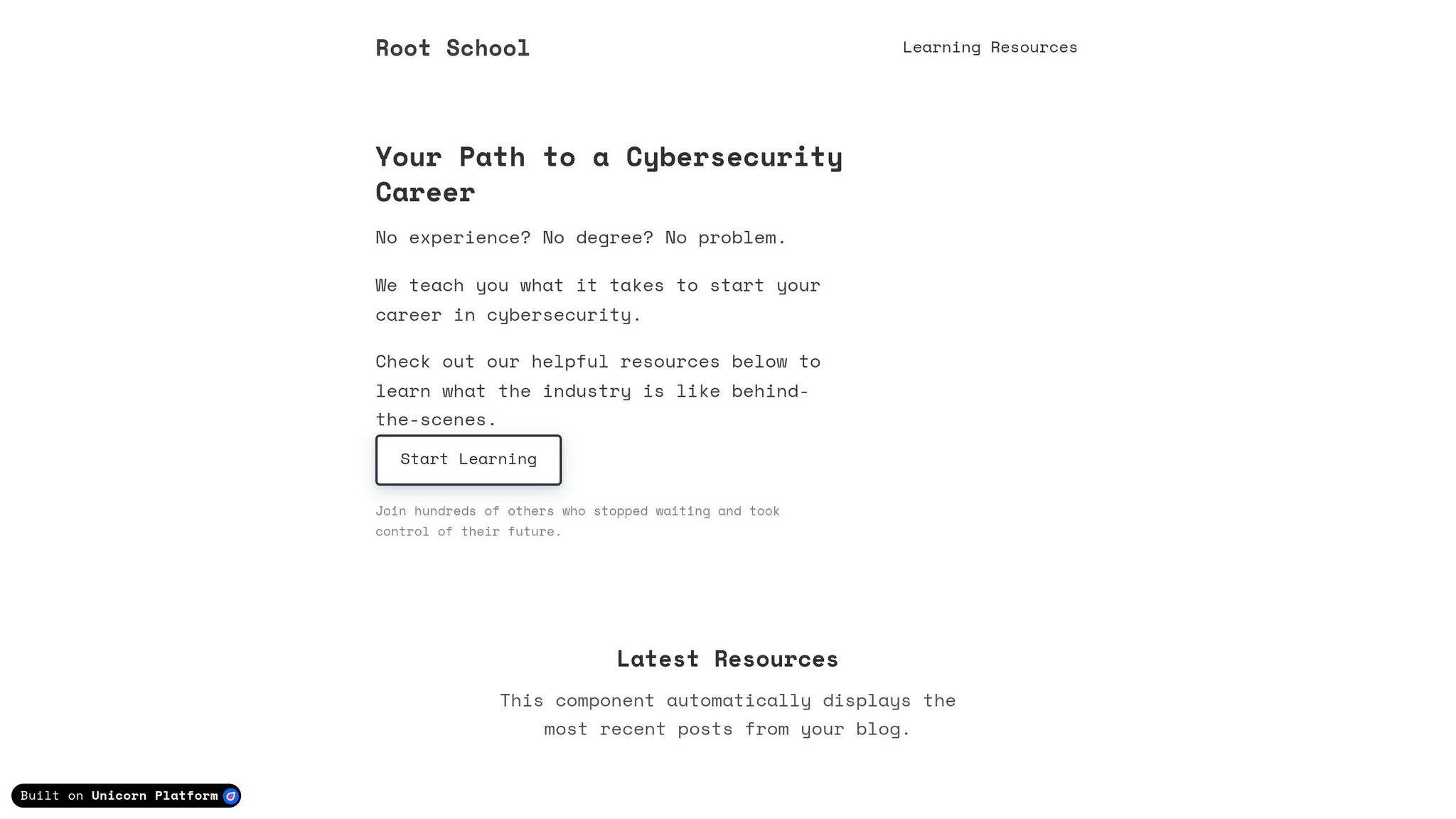
Best for: Beginners building their first cybersecurity study system
If you want a guided study system instead of starting from a blank page, Root School gives you a simple way to organize cert prep notes. It’s built for beginners getting into cybersecurity and offers a clear study framework for certification prep. That includes guides for Pentesting, GRC, and Threat Analysis, plus Daily Study Routines and Study Schedules for certifications like CySA+ and OSCP.
Security and Privacy Controls
You can use it for free without signing up, which keeps things simple. It also offers downloadable PDFs, so you can keep a local copy and study offline when needed.
Study Structure and Organization
Root School uses a 3-Layer System: Cheat Sheets for quick recall, Concept Notes for understanding the “why,” and Procedure Notes for exact commands.
That setup works well if your notes tend to get messy. You can split quick facts, core ideas, and step-by-step actions into separate sections, which makes review a lot less painful.
Support for Commands and Technical Walkthroughs
The platform covers tools like Nmap and Burp Suite, along with attack chains, and it puts the focus on understanding the process instead of just memorizing commands.
A smart way to use it is to keep tool commands, attack paths, and lab steps in separate notes. When you need to review fast, that small bit of structure can save a lot of time.
Offline Access and Device Support
Use the web version during study sessions, then keep the downloadable PDFs as your offline backup. They’re handy as a local reference when you want to review commands, concepts, and lab steps without relying on an internet connection.
2. Microsoft OneNote
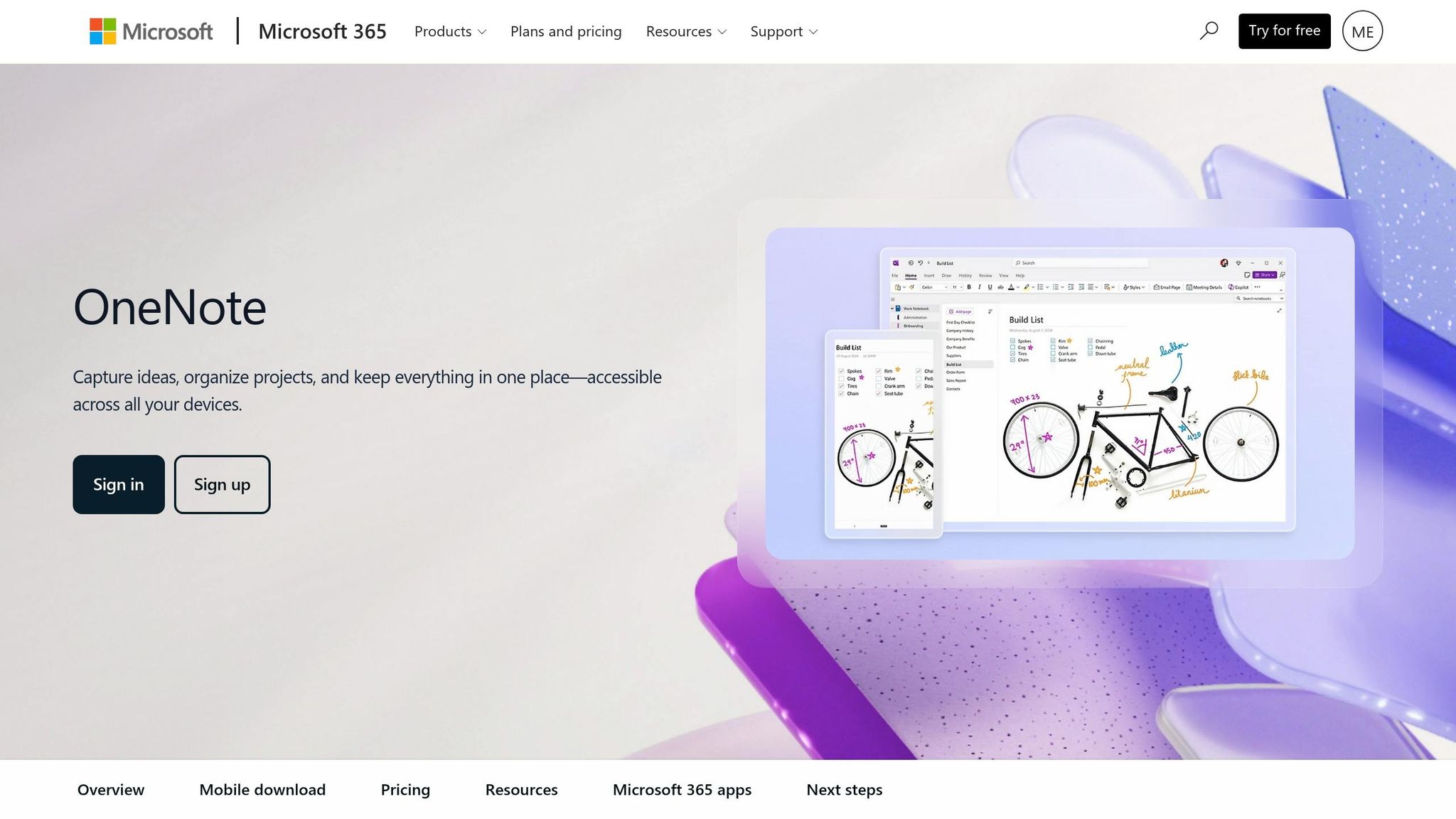
Best for: Visual learners who rely on screenshots, diagrams, and mixed-media notes
If your study notes depend on screenshots, sketches, and mixed media, OneNote is a strong fit. It gives you a freeform canvas where you can place text, images, and hand-drawn diagrams anywhere on the page. That’s handy for network diagrams, lab screenshots, and messy prep sessions where everything doesn’t fit into neat boxes. It’s especially useful for lab-heavy exam prep.
Security and Privacy Controls
OneNote lets you password-protect sections with AES 128-bit encryption, but that protection stops at the section level. You can’t lock an entire notebook or just a single page. Microsoft controls the keys for unprotected notes. So if you’re storing lab findings, screenshots, or private study notes, it makes sense to use the password-protection feature. If the material is more sensitive, store it in a dedicated password manager instead.
Search and Organization
OneNote’s OCR can search text inside screenshots, including terminal output and cloud console images. That’s a big deal when you’ve pasted in a command five days ago and can’t remember where. Its notebook > section group > section > page > sub-page structure also maps well to exam domains.
Support for Code, Commands, and Diagrams
For technical notes, OneNote works best as a capture tool, not a formatting tool. It has no native code blocks or syntax highlighting. So if you’re saving commands or scripts, screenshots are often the easiest route. Later, you can use OCR search to track them down. If you need clean, structured code documentation, pair OneNote with a second tool that supports syntax highlighting natively.
Offline Access and Cross-Device Sync
OneNote syncs across Windows, Mac, iOS, and Android, and the desktop app also works offline.
3. Notion
Best for: Structured learners who want databases, linked pages, and one workspace for everything
Notion is a good fit when you want to build a single study hub around an exam blueprint. You can use databases to tag objectives and link related notes instead of copying the same material into multiple places. That setup helps you map each exam objective to a note, command, and review list, so each objective, command, and lab note stays in one spot.
Search, Tags, and Linked Pages
Notion uses @ mentions and tags to connect related notes, so a concept like "AES-256" can show up across several pages without being duplicated. Its database views also make it easy to build comparison tables for topics like encryption protocols, AWS storage types, or port numbers, then filter and sort them while you study. Search handles technical terms well, though large workspaces can slow down.
Keep the workspace simple. The goal is faster review, not a polished dashboard.
Security and Privacy Controls
Study notes can include lab details, so security matters. Notion uses AES-256 at rest, TLS 1.2+ in transit, and 2-step verification. It is not zero-knowledge, so keep passwords, API keys, credentials, and sensitive lab data out of your notes.
Support for Code, Commands, and Diagrams
Technical notes need to display syntax and visuals cleanly. Notion supports syntax-highlighted code blocks, tables, checklists, callouts, and embeds.
Offline Access and Cross-Device Sync
Notion syncs across desktop, iOS, and Android. Offline access is limited, especially on the free tier.
4. Obsidian
Best for: Security-focused learners who want local control over their notes and a strong linking system for complex exams like CISSP or OSCP
Obsidian stores notes as local .md files, so lab configs, internal IPs, and command output stay on your device unless you choose to sync them. That makes it a good fit for exam prep, where commands, concepts, and lab findings often live in different places and need to connect inside one searchable knowledge base.
Security and Privacy Controls
The main risk comes from community plugins, so it's smart to audit them before adding them to a vault that holds lab data. If you need sync, Obsidian has an optional paid plan for $8/month with end-to-end encryption, which works well if you want your notes across multiple devices.
Once your vault is locked down, links and tags make scattered notes a lot easier to use.
Search, Tags, and Linked Organization
Obsidian's standout feature is bidirectional linking. Type [[Pass-the-Hash]] inside any note, and Obsidian automatically tracks every place that concept shows up across your vault. Instead of treating topics like isolated facts, you can connect them the way they show up in actual study sessions.
Graph View shows those links in a visual map, which can help you spot missing connections between overlapping topics.
Tags like #priv-esc or #windows let you pull up related notes across folders right away without copying the same content into multiple places.
That setup becomes even more useful when technical details stay clean and easy to review.
Support for Code, Commands, and Diagrams
Obsidian handles technical content natively, with syntax highlighting for command syntax. Canvas works like a whiteboard for attack chains, network topologies, and incident timelines. Excalidraw adds hand-drawn diagrams.
So the same notes can work for fast command review, visual mapping, and lab walkthroughs.
Offline Access and Cross-Device Sync
Because the files are local, Obsidian works offline by default. For sync, you can use Obsidian Sync or the Obsidian Git plugin with a private repo for version history.
5. Evernote
Best for: Exam candidates who lean hard on web clipping and OCR search to build a reference library from online docs, screenshots, and scanned notes
Evernote works best as a searchable inbox for clipped docs, screenshots, and scanned notes. It shines when you want one place to dump reference material and find it later without digging around. The free plan is tight, though. You're limited to 50 notes and one notebook, so serious exam prep will usually push you to a paid plan at $14.99/month or $129.99/year.
Security and Privacy Controls
Evernote lets you encrypt selected text only, and it does not store the passphrase or key. You can also turn on two-step verification and review access history.
That said, there's a clear catch for exam prep. Files, images, tables, checklists, and web clips can't be encrypted, so sensitive lab data is better kept somewhere else.
Search, Tags, and Linked Organization
This is where Evernote earns its keep. Its OCR search can find text inside images, PDFs, and handwritten notes, which is handy when your study material lives in screenshots, saved docs, or lab output files. The Web Clipper also makes saving vendor docs and blog posts simple.
For organization, you can use:
- Notebooks
- Sections
- Tags
That setup works well if your prep involves lots of source material and you want fast retrieval later.
Support for Code, Commands, and Diagrams
Evernote supports code blocks, but it leans more toward clipping and storage than detailed command formatting. If your exam prep includes long scripts or precise command sequences, it's smarter to pair Evernote with a tool that supports syntax highlighting out of the box.
Offline Access and Cross-Device Sync
The desktop app keeps a full local cache for offline access. On mobile, full offline access depends on offline notebooks or recently viewed notes.
Use Evernote for capture and retrieval, not deep technical formatting.
6. Google Keep
Best for: Quick capture of ideas, checklists, voice memos, and lab observations
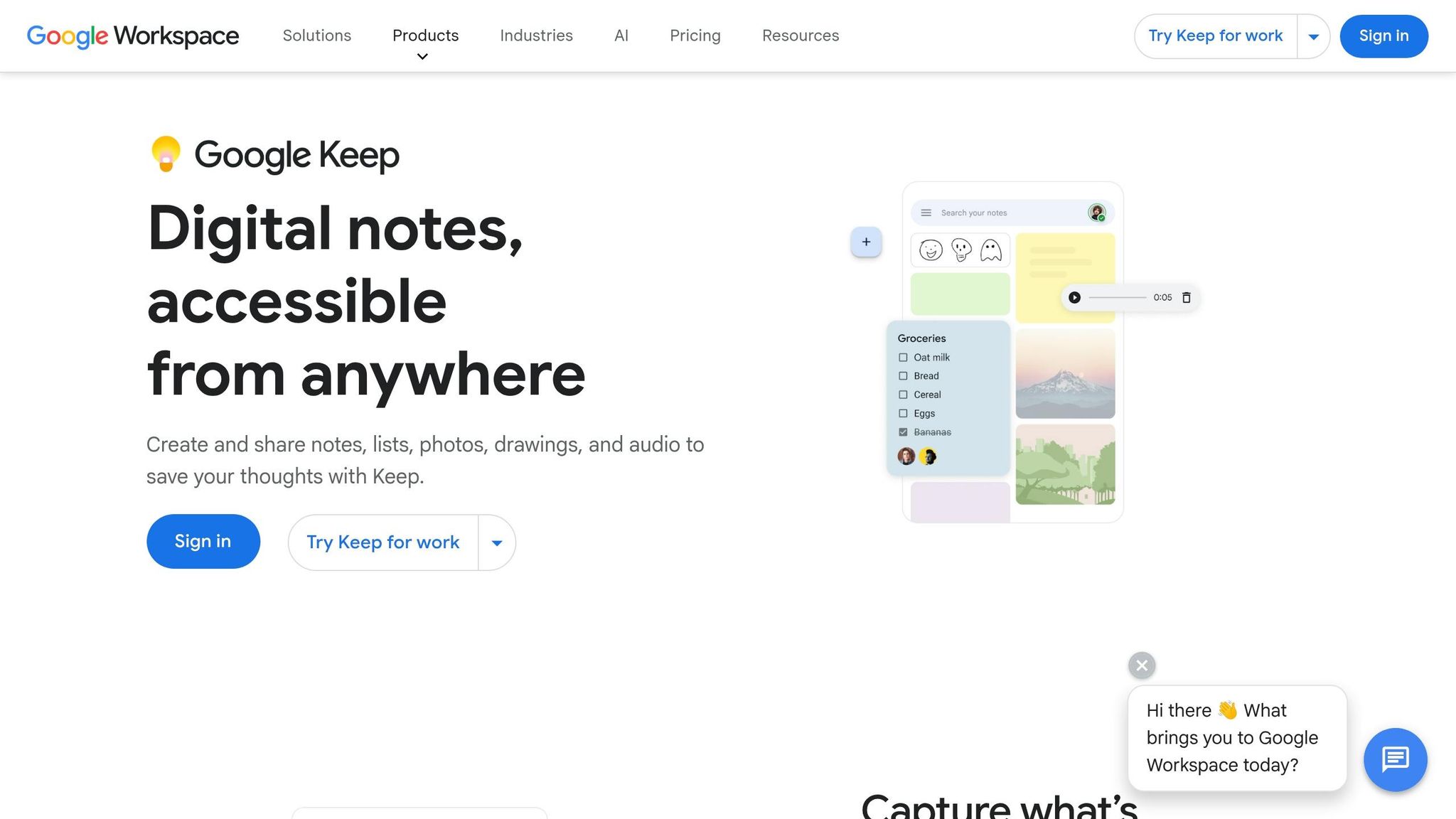
Google Keep is best used as a fast capture inbox. It’s great for quick notes, checklists, voice memos, and lab observations you want to save before they slip your mind. Then, once things calm down, you can move those cleaned-up notes into your main study system.
Security and Privacy Controls
Keep does not offer end-to-end encryption, and Google controls the keys. So this is NOT the place for credentials, API keys, or lab secrets.
Search, Tags, and Linked Organization
Keep uses labels, color-coding, pinning, and search to organize notes. That setup is simple, but it works well for fast retrieval. You can filter search by note type, label, and color, which helps when you need to find something in a hurry.
Support for Code, Commands, and Diagrams
For cybersecurity study, Keep works better as a capture tool than a full technical editor. It still does not have native code blocks or syntax highlighting.
That said, it does a solid job with visual capture. Keep includes a built-in drawing tool on all platforms, and its "Grab image text" OCR feature can pull text from photos of diagrams or terminal output. That also makes those details searchable later.
Offline Access and Cross-Device Sync
Offline access matters most when you're in a lab or moving between places. You can create and edit notes offline, and your changes sync on their own once you reconnect. Keep also syncs across Android, iOS, Wear OS, and the web.
7. Anki
Best for: Memorizing ports, protocols, commands, and incident response steps through spaced repetition
Anki is a review tool, not a notebook. That distinction matters. Use it after you’ve captured and sorted your notes, then turn the facts that matter into recall practice. Its spaced repetition system shows cards right before you’re likely to forget them, which makes it a strong fit for ports, protocols, command syntax, and incident response steps. Keep your cards short, clear, and focused. Then let the scheduler handle the timing.
Security and Privacy Controls
By default, cards stay on your device, which helps keep sensitive study prompts local. If you self-host sync, put it behind a VPN or HTTPS and use hashed passwords. That setup makes Anki a solid place for clean, de-identified cards.
Search, Tags, and Linked Organization
Tags and subdecks make it easy to split topics by domain, like networking, Windows, or privilege escalation. They also help when you want to narrow in on weak spots before a review session. If one area keeps tripping you up, you can pull it out and drill it without digging through everything else.
Support for Code, Commands, and Diagrams
Anki natively supports images, cloze deletions, and type-in-answer cards. For command syntax, type-in-answer cards are especially useful because they force you to enter the exact flags and options for tools like Nmap or Metasploit. Cloze cards work well for incident response procedures because you can test one step at a time. The result is simple: commands, visuals, and recall prompts all live in one review system.
Offline Access and Cross-Device Sync
Anki works offline on desktop and mobile, and AnkiWeb syncs your cards across devices for free. If you use iOS, AnkiMobile is a one-time $24.99 purchase.
8. XMind
Best for: Visualizing cybersecurity frameworks, attack paths, and incident response workflows through mind mapping
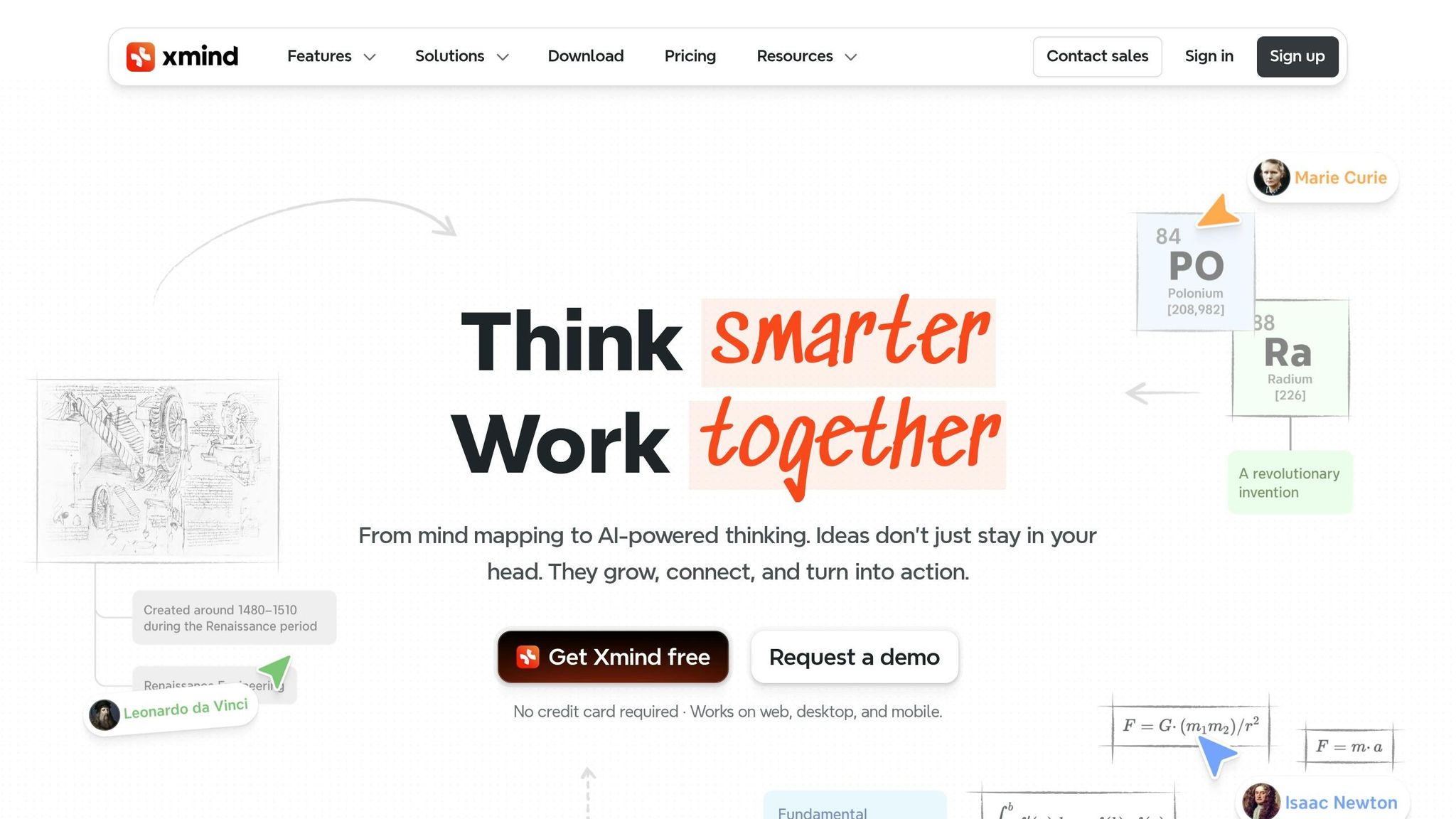
After a recall-heavy tool like Anki, XMind helps you see how everything connects. It works best for mapping relationships, not for storing long notes. You can split certification domains into branches and lay out process flows like incident response phases and their substeps.
Security and Privacy Controls
XMind is local-first, which means your files stay on your device by default. It uses AES-128 encryption, and you can add password protection to individual maps that include sensitive study material.
Search, Tags, and Linked Organization
Search helps you find content inside a map. Labels and topic links make it easier to connect and filter related ideas across branches. If you want to pull your maps into a larger note system, you can export them as Markdown or images.
Support for Code, Commands, and Diagrams
For technical study, structure matters just as much as text. XMind supports timelines, tree charts, and matrices, which makes it handy for mapping things like the OSI model or attack chains.
If you need to keep command output, paste screenshots into branches or use the Notes field for longer explanations. There’s also an Outliner mode that turns a map into a structured list with one click. That’s handy when you’re reviewing step-by-step lab procedures.
Offline Access and Cross-Device Sync
XMind works fully offline by default and stores files locally. If you want, you can turn on cloud sync across devices. XMind Pro costs about $10/month and adds collaboration tools and more advanced features. It’s a good fit for mapping the big picture, then moving key facts into your main notes or flashcards.
9. draw.io
Best for: Network diagrams, attack trees, and data flow diagrams for cybersecurity exam prep
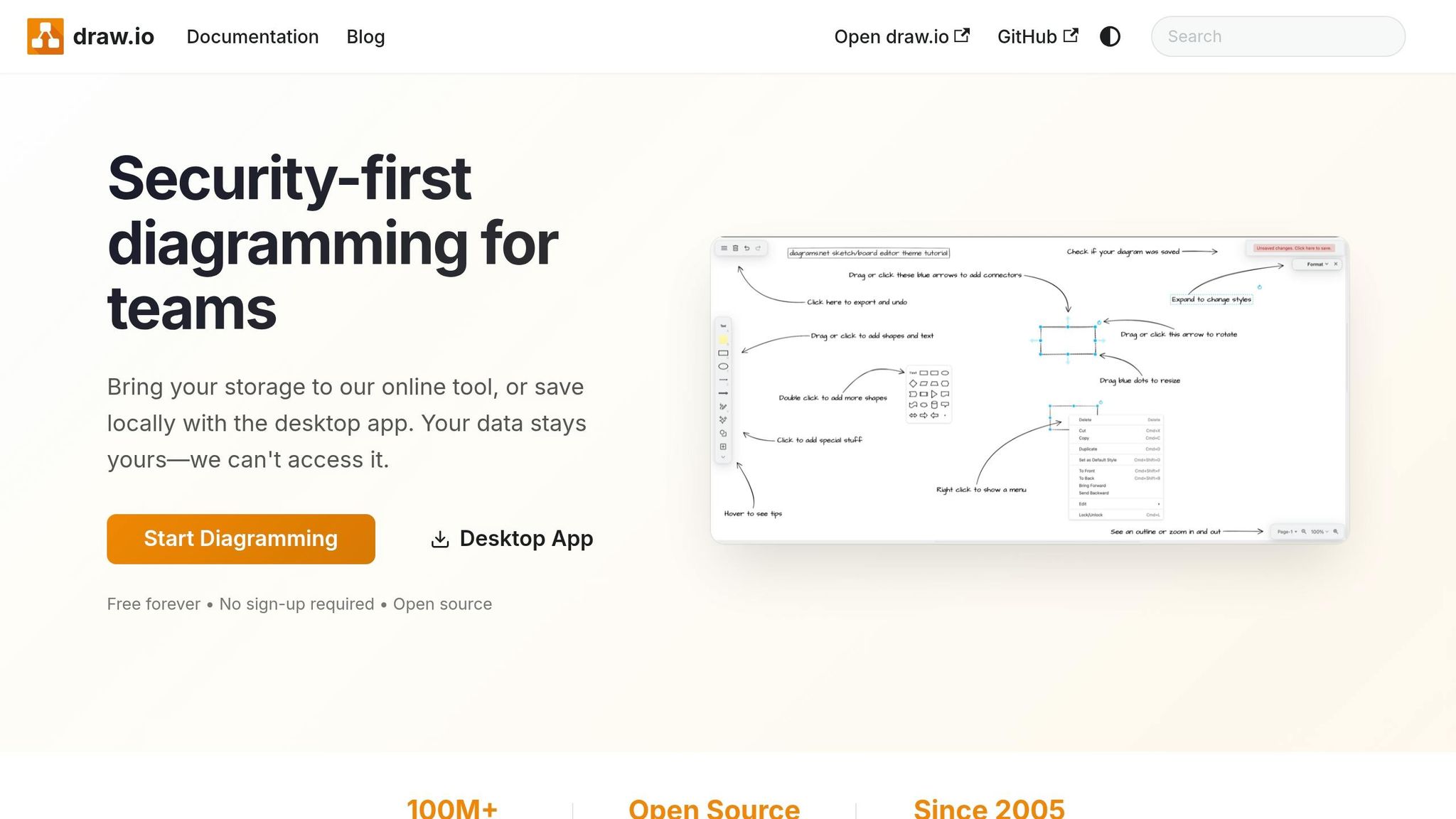
If XMind is where you sketch the big picture, draw.io is where you get exact. It’s a strong fit for cybersecurity diagrams that need structure, not just rough notes. The app includes a Threat Modeling shape library for Data Flow Diagrams (DFDs), Process Flow Diagrams (PFDs), and Attack Trees. So when you need to map network paths, trace attack routes, or lay out data flows you’ll want to review later, draw.io fits the job.
Security and Privacy Controls
draw.io keeps files in the storage you pick, and the desktop app runs fully offline on Windows, macOS, and Linux. You decide where your files live, whether that’s your local device, Google Drive, OneDrive, GitHub, or GitLab. That gives you more control over where lab diagrams are stored instead of pushing them onto a separate server.
There’s also a built-in anonymize option: Extras > Anonymize Current Page. It overwrites text and metadata before you share a diagram with someone else.
Multi-Page Diagrams, Tags, and Linked Organization
draw.io supports multi-page diagrams, layers, and tags, which helps when your study setup starts getting messy. You can keep an entire certification domain in one file, then split each subdomain into its own page. That setup feels a lot cleaner than juggling a pile of separate files.
Shapes can also hold custom links to external URLs, other diagram tabs, or specific documentation pages. That makes it easier to jump from a high-level map to the note, reference, or source behind it. Scratchpad stores reusable shapes, so you don’t have to rebuild the same diagram parts over and over.
Support for Mermaid and Diagrams
The built-in Threat Modeling shape library includes icons for DFDs, PFDs, and Attack Trees. To turn it on, click More Shapes at the bottom of the left panel, scroll to "Other", and check "Threat Modeling".
Mermaid is handy when you want to turn text notes into a diagram without drawing each part by hand. Use Arrange > Insert > Mermaid to convert plain-text logic into a flowchart.
Offline Access and Cross-Device Sync
The desktop app works fully offline by default. The online editor at app.diagrams.net also works as a PWA, so you can open it online and keep editing offline. draw.io is free and open source under the Apache 2.0 license.
Quick Comparison Table
Here’s the short version. Each tool shines in a different spot, so the right pick depends on how you study and how you like to store notes.
| Tool | Storage Model | Best Use | Offline Support | Platform Availability |
|---|---|---|---|---|
| Root School | Practitioner-grade content | Certification notes and playbooks | Yes (PDF downloads) | Web, PDF downloads |
| Microsoft OneNote | Cloud-based | Screenshots, freeform canvas, visual learners, tablet users | Full | Windows, Mac, iOS, Android, Web |
| Notion | Cloud-hosted | Databases, study trackers, structured notes | Limited | Windows, Mac, iOS, Android, Web |
| Obsidian | Local-first (plain .md files) | Knowledge mapping, Markdown notes, OSCP/CPTS prep | Full | Windows, Mac, Linux, iOS, Android |
| Evernote | Cloud-hosted | Web clipping, OCR search, general notes | Paid only | Windows, Mac, iOS, Android, Web |
| Google Keep | Cloud-hosted | Quick capture, checklists, short ideas | Basic | Web, iOS, Android |
| Anki | Local with optional sync | Spaced repetition flashcards for ports and protocols | Full | Windows, Mac, iOS, Android |
| XMind | Local files | Mind maps, visualizing workflows and domains | Full | Windows, Mac, iOS, Android |
| draw.io | Local or cloud | Network diagrams, attack trees, data flow diagrams | Yes | Web, Desktop (cross-platform) |
Once you choose a tool, make backups part of your routine. Also, keep sensitive lab data out of plain text.
How To Back Up And Secure Your Study Notes
Why Study Notes Need a Backup Plan
A study system only helps if you can get back to it when something goes wrong.
That matters even more during long cert prep. A study cycle for OSCP or CISSP can run for weeks or months, and losing your notes in the middle of labs or practice work can throw you way off track. A dead laptop, broken drive, or locked account can shut you out of material you already sorted and built.
A Simple Hybrid Backup Setup
A hybrid setup is usually the smart move: keep theory notes in a cloud-synced folder, and keep sensitive notes in encrypted local storage.
If you use Obsidian, place your vault folder inside Dropbox or OneDrive so you have off-site backup and sync across devices. For lab data, make a small encrypted container with VeraCrypt on your computer or on a USB drive. Put sensitive material there instead of inside your main cloud-synced vault. Then add MFA to the account layer and save your recovery codes.
Passwords, MFA, And Account Recovery
Use a different password for each note-taking account. Turn on MFA for Notion, Evernote, and OneNote.
Before exam prep begins, generate backup codes for each account and keep them somewhere physical. That way, if you get locked out, you still have a path back in.
Storage Options Compared
| Storage Type | Main Benefit | Main Risk | Best Use Case |
|---|---|---|---|
| Local Encrypted | Full data privacy; no network exposure | Data loss if hardware fails without a backup | Sensitive lab data, credentials, internal hostnames |
| Cloud (Standard) | Easy access and sync across devices | Account lockout; provider can access content | Theory notes, exam objectives, acronyms |
| Hybrid | Redundancy with layered security | Requires manual setup of the local layer | Long certification cycles like OSCP or CISSP |
For long exam prep, hybrid is often the safest setup. You get the convenience of cloud sync for day-to-day study, plus a separate locked space for material that should not sit in plain view.
What Not To Store In Plain Text
Never put real credentials, API tokens, or session tokens in a general note app. Also skip unredacted lab screenshots that show internal hostnames, usernames, or IPs.
For offensive-security notes, plain-text exploit strings or AMSI bypass commands can also cause trouble. They may trigger antivirus alerts or even account flags.
How To Build a Note-Taking System For Cybersecurity Study
A good study system isn't just about picking the right app. It's about building a repeatable workflow that helps move new information from first exposure into long-term memory. The simplest way to do that is to use one tool to capture, one to organize, and one to review. Here's a practical five-step setup that works well for cybersecurity cert prep.
Step 1: Capture Quick Ideas Fast
Use a simple capture tool like Google Keep or the Notion web clipper to jot down commands, questions, and observations during lessons or labs. Don't worry about formatting yet. At this stage, speed matters more than structure.
Step 2: Build One Main Knowledge Base
After the lesson, move your raw notes into one main knowledge base such as Obsidian, Notion, or OneNote. Organize it into three layers: cheat sheets, concept notes, and procedure notes.
Keep your folder structure shallow - no more than three levels deep - and use tags like #priv-esc or #windows to connect related topics across domains. Research shows that students who paraphrase and reorganize information during note-taking score 34% higher on tests than those who copy content verbatim. That main knowledge base becomes your long-term home base.
Step 3: Turn Key Facts Into Anki Cards
Port numbers, protocol acronyms, NIST framework details, and exact command syntax usually work better as flashcards than as long notes. Turn those facts into Anki cards as soon as you finish the note.
If you use Obsidian, the Spaced Repetition plugin can help with part of that workflow.
Step 4: Link Diagrams To Your Notes
Diagrams are great for attack paths, network maps, and workflows. Use XMind or draw.io to make a diagram, then paste a link to it - or embed it directly - inside the related concept note or procedure note.
In Obsidian, Canvas can connect visual elements back to your notes. Review the diagram next to the matching note so the picture and the written steps stick together.
Step 5: Review On a Set Schedule
Capture and organization only help if you review on a steady schedule. Set aside a weekly review block to process new lessons into your knowledge base, refresh your Anki cards, and test yourself on procedure notes without looking at the steps.
Apply progressive summarization as you go: bold key points on the first pass, then highlight only the facts most likely to show up on the exam later.
Conclusion
Across these tools, the pattern is simple: write things down fast, sort them in one place, and go back to them often. The best note-taking setup for cybersecurity exam prep doesn't need to be fancy. What matters most is the balance between structure, searchability, privacy, visual learning, and memorization support - not how many tools you stack together or how deep you go into advanced features.
Put plainly: consistency beats complexity.
Stick with:
- one knowledge base
- one capture app
- one flashcard app
A system only works if you use it every day. Keep setup time under two hours, then spend the rest of your time studying.
FAQs
How many note-taking tools do I really need?
You probably only need one main note-taking tool.
If you spread notes across too many apps, things get messy fast. Your info ends up scattered, your system starts to wobble, and it gets harder to build the kind of routine that feels automatic.
A better move is to pick one reliable source of truth and stay with it. Give your setup at least a month before you think about switching. That gives you enough time to build habits, see what works, and stop second-guessing every little detail.
At the end of the day, the best tool isn’t the one with the most features. It’s the one you’ll keep opening and updating.
What should I keep out of my study notes?
Avoid passive note-taking. Don’t just copy down what the lecturer says. Put ideas into your own words so they stick better and make more sense later.
You also don’t need to write down everything. That’s a fast way to end up with a messy page you’ll never use. Aim for notes that are organized and easy to act on, such as:
- Cheat sheets for key facts and formulas
- Concept notes for big ideas and how they connect
- Procedure notes for step-by-step tasks
It also helps to skip tools that make your notes hard to search, clean up, or format. If finding something later feels like digging through a junk drawer, the system probably isn’t working.
How should I back up cybersecurity notes safely?
Prioritize tools that use local, plain-text files like Markdown. That setup keeps your notes on your own machine, so you stay in control instead of relying on a cloud service or getting stuck in a closed file format.
For an extra layer of backup, copy your local notes folder to a secure cloud drive or track it with Git. It’s a simple way to keep your notes available and intact over time.